
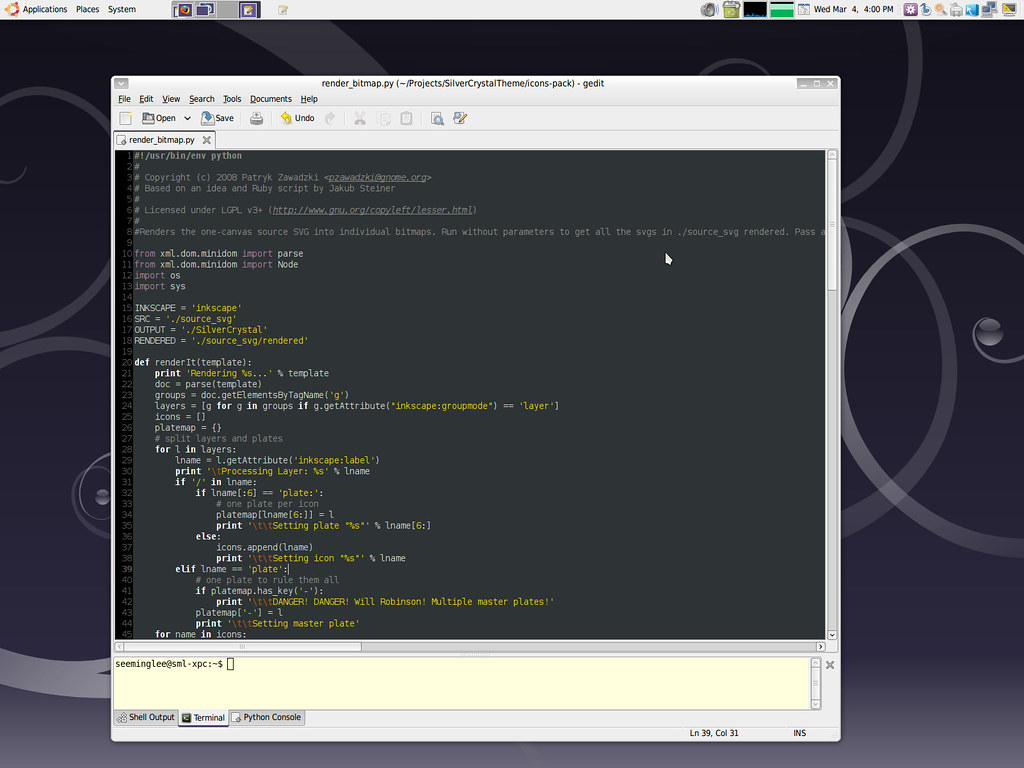
I asked Claude to customize my Linux PC, and within a few hours I had a polished, cohesive desktop that looked and felt better than setups I’d spent weekends tweaking. If you’ve ever felt overwhelmed by the sheer amount of choices—GNOME vs KDE, tiling window managers, dotfiles and themes—this experiment shows a faster path to a refined environment. Right away I noticed smarter defaults, consistent theming, and fewer configuration headaches.
Why try AI for desktop customization
Many Linux enthusiasts enjoy ricing GNOME or KDE Plasma, but they often avoid window managers like i3 or Hyprland because those require more manual configuration. For example, window managers can feel like programming your desktop rather than simply personalizing it. By contrast, an AI assistant can suggest a polished set of choices and generate configuration files quickly.
In addition, using AI reduces trial-and-error time. Instead of spending an entire Saturday testing themes, keybindings, and startup scripts, you get a coherent plan and working configs in a fraction of the time.
Understanding window managers and ricing
What makes window managers different
Window managers such as i3, Sway, and Hyprland are lightweight, efficient, and often tiling-based, which appeals to power users. They lack the graphical polish out of the box, but they offer immense flexibility for those willing to write config files. Consequently, customization tends to be manual and time-consuming.
Ricing explained
Ricing refers to customizing the look and feel of your desktop environment—icons, panels, fonts, wallpaper, and the behavior of windows. You can rice GNOME or KDE with extensions and themes, or you can fully craft a minimal WM setup with scripts and dotfiles. Either way, consistency across components is crucial for a professional-quality result.
How Claude approached my Linux desktop
First, I described my preferences: a minimalist aesthetic, hotkeys for productivity, and a tiled workflow. Next, Claude proposed a stack: a Hyprland WM for modern visuals, Wayland-compatible notification tools, a consistent icon set, and a theme that matched my wallpaper. This plan made it easy to move from concept to implementation.
Moreover, Claude generated configuration snippets and explained each choice. As a result, I could review changes safely and apply them incrementally. The AI wasn’t just automating work; it was shaping a unified vision for the desktop.
Step-by-step: From idea to working setup
1. Define goals and constraints
Start with a short list of requirements: aesthetic, performance targets, essential apps, and keyboard workflow. This helps an assistant pick compatible components and avoid wasted effort.
2. Choose the right window manager and tools
Claude recommended Hyprland for a visually rich Wayland experience, but also suggested i3 or Sway if you prefer minimalism. Either way, pairing the WM with a consistent set of utilities—terminal, compositor settings, and bar—produced a cohesive result.
3. Generate and test configs
Then, apply configurations in small steps. For safety, back up existing dotfiles and use version control so you can roll back quickly. Meanwhile, test keyboard shortcuts and window rules to refine behavior.
Practical tips for using AI to customize Linux
First, be explicit about your preferences: light vs dark theme, font choices, and required app integrations. This helps the AI narrow down sensible defaults. Also, request explanations for each generated snippet so you learn and can adapt configurations yourself.
Next, use the AI to generate templates rather than blindly applying changes. For instance, ask for a Hyprland config with comments, a Polybar or waybar layout, and a sample Swaylock or grimshot workflow. This approach balances automation with control.
Benefits and potential pitfalls
The biggest advantage is speed: a weekend-long project becomes an afternoon task. Additionally, AI often surfaces aesthetic and ergonomic combinations you might not have considered. That said, be mindful of compatibility issues and version mismatches between packages, especially on rolling-release distros.
To mitigate risks, always test on a VM or separate user profile first. Furthermore, maintain backups and keep a changelog in your dotfile repository so you can track what changed and why.
Ultimately, letting Claude help customize my Linux PC demonstrated that AI can be a practical co-pilot for desktop ricing and WM setup. By combining clear goals, incremental testing, and version-controlled dotfiles, you can achieve a polished, functional environment far faster than going it alone. Try a small experiment: pick one component—the status bar, keybindings, or theme—and ask an AI to draft a config; then iterate until it fits your workflow.



Leave a Reply