

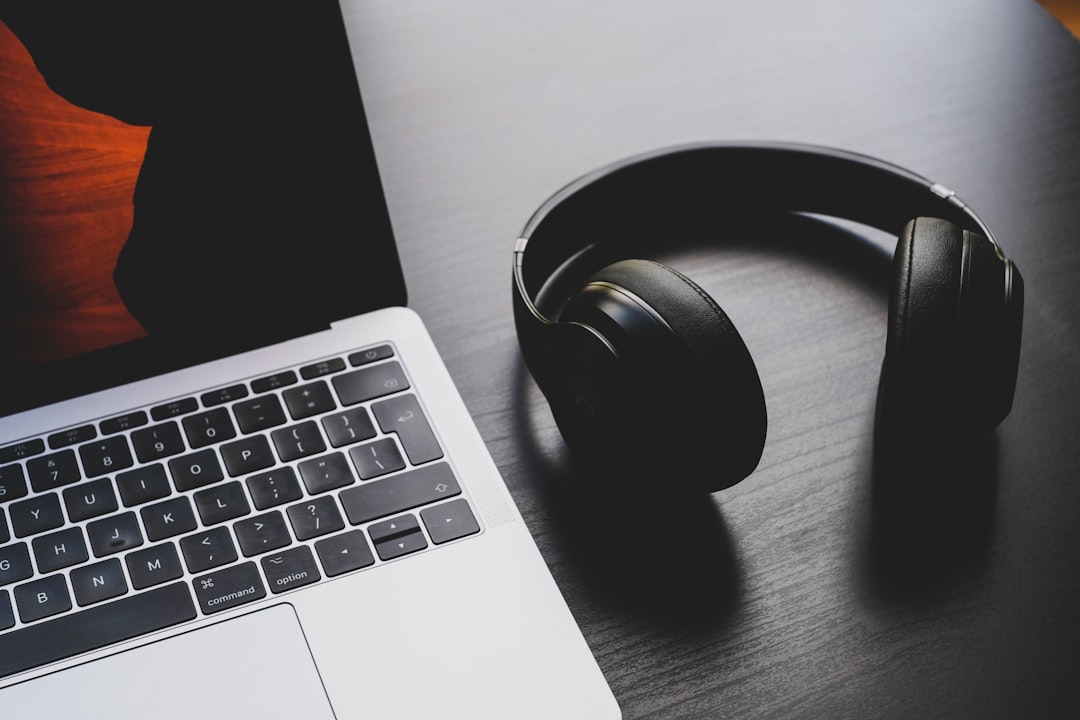
If you’ve ever paired premium headphones with a Windows PC only to get mediocre audio, you’re not imagining things. Windows Bluetooth codecs often limit connection quality, making high-resolution codecs like aptX or LDAC unavailable even when your headset supports them. This mismatch between headset capabilities and the PC’s Bluetooth stack is the root cause of many frustrating listening experiences.
Why Windows Bluetooth codecs lag behind headphone capabilities
First, it helps to understand the bottleneck: Bluetooth audio requires both endpoints—the headphones and the source device—to agree on a codec. Windows frequently defaults to the basic SBC codec because of compatibility and stack limitations. As a result, even advanced headphones will fall back to lower-bitrate formats.
Moreover, licensing and driver support play a role. Some high-quality codecs are proprietary (for example, aptX from Qualcomm and LDAC from Sony), and operating system-level support depends on chipset manufacturers and Microsoft’s Bluetooth stack. In short, hardware and software must align to get the best results.
How different codecs affect Bluetooth audio quality
To put things into perspective, codecs like SBC, AAC, aptX, aptX HD, aptX Adaptive, and LDAC vary widely in bitrate and latency. SBC is universal but low in fidelity. LDAC and aptX variants can carry much higher bitrates and retain more detail, which benefits music with rich dynamic range.
For gaming or video, latency matters too. Higher-quality codecs sometimes introduce delay, while adaptive codecs aim to balance quality and responsiveness. Therefore, codec choice affects both audio clarity and timing, which is why native Windows support is significant.
Common reasons Windows won’t use the best Bluetooth codec
First, the internal Bluetooth adapter may not include the required chipset or vendor drivers to enable advanced codecs. Many built-in modules prioritize power efficiency and compatibility over high-bitrate audio.
Next, the Windows Bluetooth stack and audio profiles may not expose alternative codecs to the system or to apps. Finally, driver updates from the Bluetooth chipset vendor are often the missing piece—without them Windows falls back to default behavior.
Practical workarounds to get better Bluetooth audio on Windows
If you want immediate improvement, consider a USB Bluetooth dongle with a Qualcomm or CSR chipset that explicitly supports aptX/LDAC. These dongles sometimes include drivers that enable high-quality codecs on Windows.
Alternatively, use a wired connection or an external USB DAC. A direct USB audio path bypasses Bluetooth limitations entirely and delivers consistent high-fidelity sound. Many audiophile dongles and headphone manufacturers provide USB-C cables or DACs for this reason.
How to check and update Bluetooth drivers
Start by identifying your Bluetooth adapter in Device Manager, then check the vendor and part number. Next, visit the OEM or chipset manufacturer’s website for the latest drivers. In many cases, installing vendor-specific drivers unlocks additional codec support that generic Windows drivers do not provide.
Additionally, keep Windows updated. Microsoft occasionally improves Bluetooth handling and profile support, so system updates can help—though they won’t add proprietary codecs unless the driver or vendor enables them.
Third-party tools and software options
There are community and commercial utilities that can help diagnose Bluetooth codec usage and sometimes force specific profiles. Use these with caution and verify compatibility with your hardware. For many users, manufacturer apps for headphones provide the simplest path to optimal settings.
For developers and advanced users, experimenting with alternative Bluetooth stacks or low-level drivers can yield results, but this route requires technical expertise and may affect system stability.
When to choose a different approach
If you frequently prioritize audio quality, a wired connection or USB DAC is the most reliable solution. Meanwhile, if mobility is essential, selecting a laptop or dongle with proven codec support is a worthwhile investment. Ultimately, matching the right combination of headset, adapter, and drivers makes the biggest difference.
Best practices to maximize Bluetooth audio on Windows
First, verify what codec your headphones actually support and whether the vendor supplies Windows drivers or apps. Next, test with a supported dongle before purchasing new headphones—this helps isolate whether the bottleneck is the PC.
Finally, consider latency and battery trade-offs. High-bitrate codecs drain battery faster and may increase latency. Balancing these factors helps you choose the setup that best fits music listening, video, or gaming needs.
Improving Bluetooth audio on Windows is often a matter of aligning hardware, drivers, and settings. By checking your adapter, updating vendor drivers, or using a dedicated dongle or wired DAC, you can unlock significantly better sound. Take action today: identify your Bluetooth chipset, download vendor drivers, or try a quality USB adapter to immediately hear the difference.


Leave a Reply