

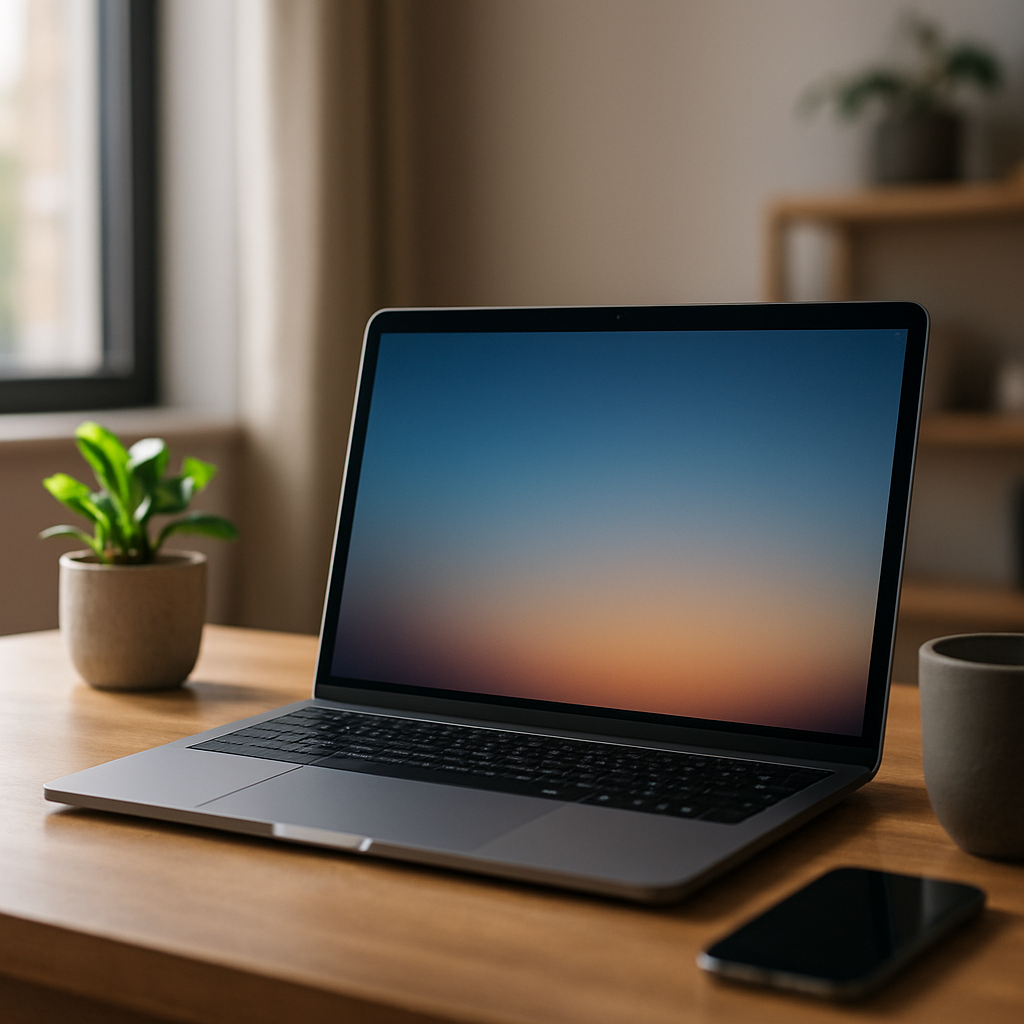
Most of us grew up clicking on desktop icons every day, but removing those icons can radically change how you work. The first time I hid desktop icons on Windows I noticed less visual noise and faster focus, and you can enjoy the same clarity with a few simple changes. If cluttered shortcuts are slowing you down, read on for practical steps and alternatives that actually improve productivity.
Why remove desktop icons: the productivity and focus benefits
Desktop icons and shortcuts create visual clutter that competes for attention. By eliminating that clutter you reduce cognitive load, making it easier to find what you need and stay on task.
Furthermore, a cleaner desktop encourages better file organization and forces you to rely on faster tools like search and the taskbar. As a result, you spend less time hunting for files and more time getting work done.
How to hide desktop icons in Windows
To get started, right-click on an empty area of the desktop, choose View, then uncheck Show desktop icons. This instantly clears the screen while keeping files accessible in File Explorer.
Alternatively, consider using third-party tools like desktop organizers if you prefer selective visibility. These options give you flexibility: hide everything, show selected groups, or create collapsible zones.
Recovering icons temporarily
If you need to access a hidden file quickly, simply toggle Show desktop icons back on. Also, pin frequently used apps to the taskbar or Start menu so they remain just a click away without crowding the desktop.
Alternatives to desktop icons on Windows
There are several reliable replacements for desktop shortcuts that are faster and more organized. Using the Start menu, taskbar pins, and Windows search gives you instant access to apps and documents without desktop clutter.
For files and folders, use File Explorer’s Quick Access or a well-structured folder hierarchy. Cloud storage with synced folders also keeps your workspace clean while providing cross-device access.
Virtual desktops and task view
Virtual desktops are a powerful way to separate contexts — one for work, one for personal, another for projects. Switch between desktops with Task View to isolate tasks without relying on desktop icons as a visual cue.
Third-party tools and docks
If you miss having things visible, try a dock or organizer app that sits at the edge of the screen. These can be hidden until needed, offering a balance between accessibility and minimalism.
Practical tips for a cleaner Windows desktop
Start small: hide icons for a week and track how often you need to unhide them. Often you’ll find the vast majority of shortcuts are rarely used and can be archived or deleted.
Create a master downloads cleanup habit by moving files to categorized folders at the end of each day. Likewise, pin essential applications to the taskbar for one-click access and use descriptive folder names so search results are easier to parse.
Use search and keyboard shortcuts
Windows search is faster than scanning a cluttered desktop—press Win + S or Win and start typing to find apps and documents instantly. Learn a few keyboard shortcuts like Win + E for File Explorer and Alt + Tab for window switching; they reduce dependence on icons.
Maintaining a minimalist desktop workflow
Consistency beats perfection: pick an organization method and stick to it. Regularly archive or delete files that no longer serve a purpose, and schedule a quick desktop tidy once a week to prevent clutter from coming back.
Additionally, consider a simple wallpaper that is easy on the eyes; less busy backgrounds make any remaining content easier to spot and help sustain a calm workspace.
Try removing desktop icons for two weeks and adopt one or two alternatives such as taskbar pinning and File Explorer Quick Access. With these small changes you’ll reduce distractions, speed up your workflow, and keep your focus where it belongs: on the work itself. Start by hiding your icons now and commit to a short trial period — you may be surprised at how much smoother your computing life becomes.



Leave a Reply