

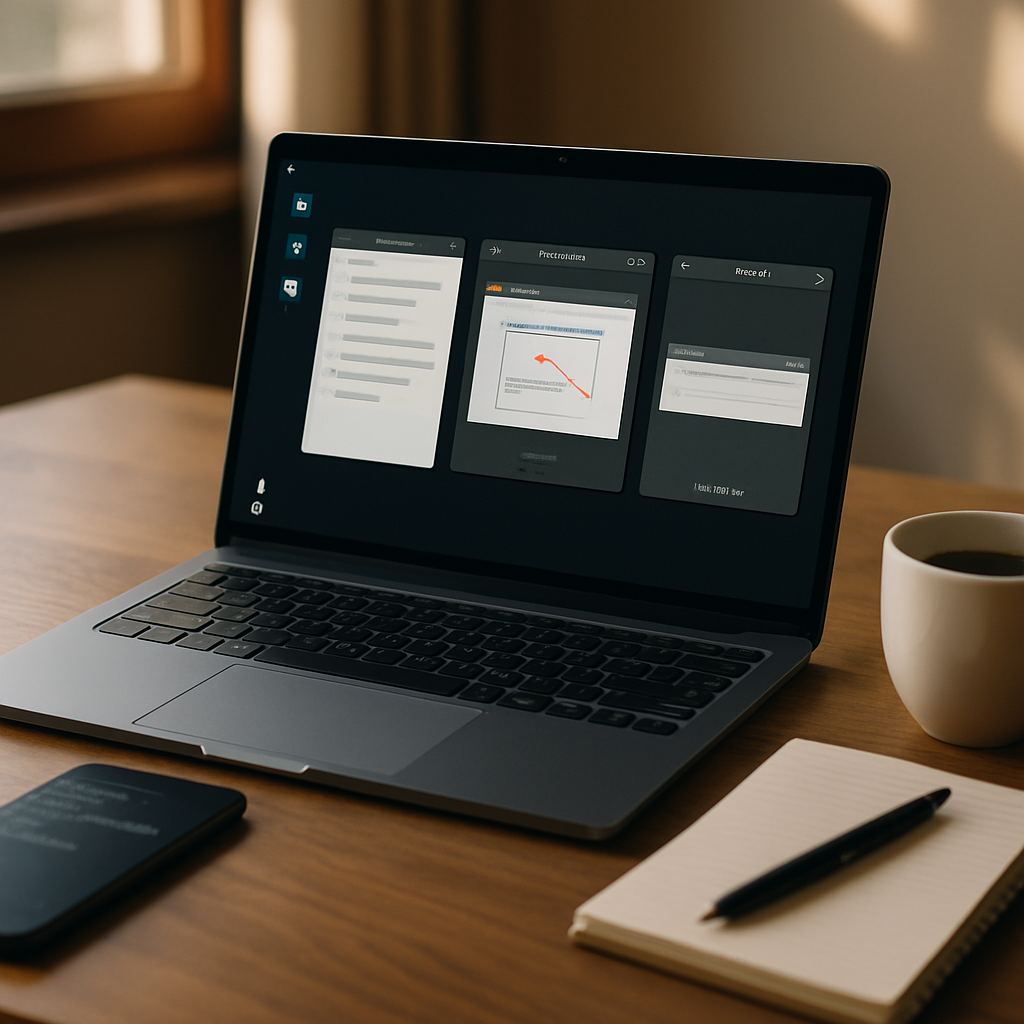
If you want to get more done this weekend, try these powerful Linux apps that earned a permanent spot in my workflow. Within minutes each tool reveals why it’s more than just another download: they solve problems you might not have realized had better solutions. Read on for quick installs, practical use cases, and tips to integrate them into a productive weekend setup.
Why choose these powerful Linux apps for productivity
Picking new software can be overwhelming, so these three picks were chosen for immediate impact. They fix recurring annoyances — lost clipboard entries, clumsy screenshot workflows, and fragile system updates — with minimal setup required.
Moreover, each app is lightweight, open source, and compatible with major distributions. That makes them ideal for anyone from curious beginners to seasoned sysadmins who want better day-to-day tools.
Clipboard manager for Linux: CopyQ
CopyQ is a robust clipboard manager that keeps a searchable history of text and images. Instead of repeatedly retyping or losing copied snippets, you can recall any recent entry, annotate items, or create persistent clips for reuse.
From a productivity perspective, CopyQ reduces context switching and repetitive work. It supports custom shortcuts, scripting, and syncing across sessions, which multiplies efficiency when you’re juggling terminal commands, code snippets, or links.
Quick install and setup
On Debian/Ubuntu: sudo apt install copyq. On Fedora: sudo dnf install copyq. Start it at login and assign a hotkey to open the history. That small step pays off quickly when your clipboard becomes a reliable toolkit.
Annotate screenshots quickly with Flameshot
Flameshot replaces clunky screenshot tools with a fast, annotation-friendly alternative. Capture a region, add arrows and text, blur sensitive information, and upload or copy the result to the clipboard in seconds.
Flameshot shines during documentation tasks, bug reporting, and remote collaboration. Instead of exporting to an image editor, you annotate inline and keep going with your work.
Easy commands and shortcuts
Install via sudo apt install flameshot or sudo dnf install flameshot. Bind a global key (for example, PrintScreen) to flameshot gui to make screenshots instant. Use the integrated upload feature or copy the image directly for fast sharing.
System snapshots and restore with Timeshift
Timeshift provides reliable system snapshots so you can roll back after problematic updates or configuration changes. It focuses on system files and settings, making it safer and more efficient than full backups for many users.
Think of Timeshift as insurance for your OS: before you tinker with new drivers or major updates, one snapshot lets you return to a stable state without reinstalling everything.
Getting started with Timeshift
Install with sudo apt install timeshift or sudo dnf install timeshift. Configure a snapshot schedule and choose a local or external destination. Create an initial snapshot before experimenting and you’ll sleep better knowing recovery is straightforward.
How to try all three this weekend
Start by installing CopyQ, Flameshot, and Timeshift in that order so you immediately feel productivity gains. Allocate an hour for installation and basic configuration, then spend another hour using them in real tasks like writing, reporting bugs, or testing an upgrade.
As you move between tasks, use transitional habits: open CopyQ to fetch a command, capture a screenshot with Flameshot, then snapshot with Timeshift before a risky install. These small patterns make new tools stick and deliver consistent benefits.
Troubleshooting and tips for everyday use
If a tool behaves unexpectedly, check logs and distribution-specific package notes. For instance, clipboard managers may need accessibility permissions in certain desktop environments. Flameshot may require a compositor tweak to capture correctly.
Also consider pairing these apps with lightweight automation: a small script to rotate Timeshift snapshots or a keybinding manager to unify shortcuts across apps. That kind of polish makes these utilities feel integrated rather than bolted on.
Try installing one app now and another later this weekend; incremental adoption prevents overwhelm. Each of these powerful Linux apps delivers clear, practical improvements to everyday workflows, and with a couple of tweaks you’ll notice immediate productivity wins. Take action tonight: install CopyQ for clipping efficiency, map Flameshot to your screenshot key, and create a Timeshift snapshot before any major change so you can explore with confidence.



Leave a Reply