

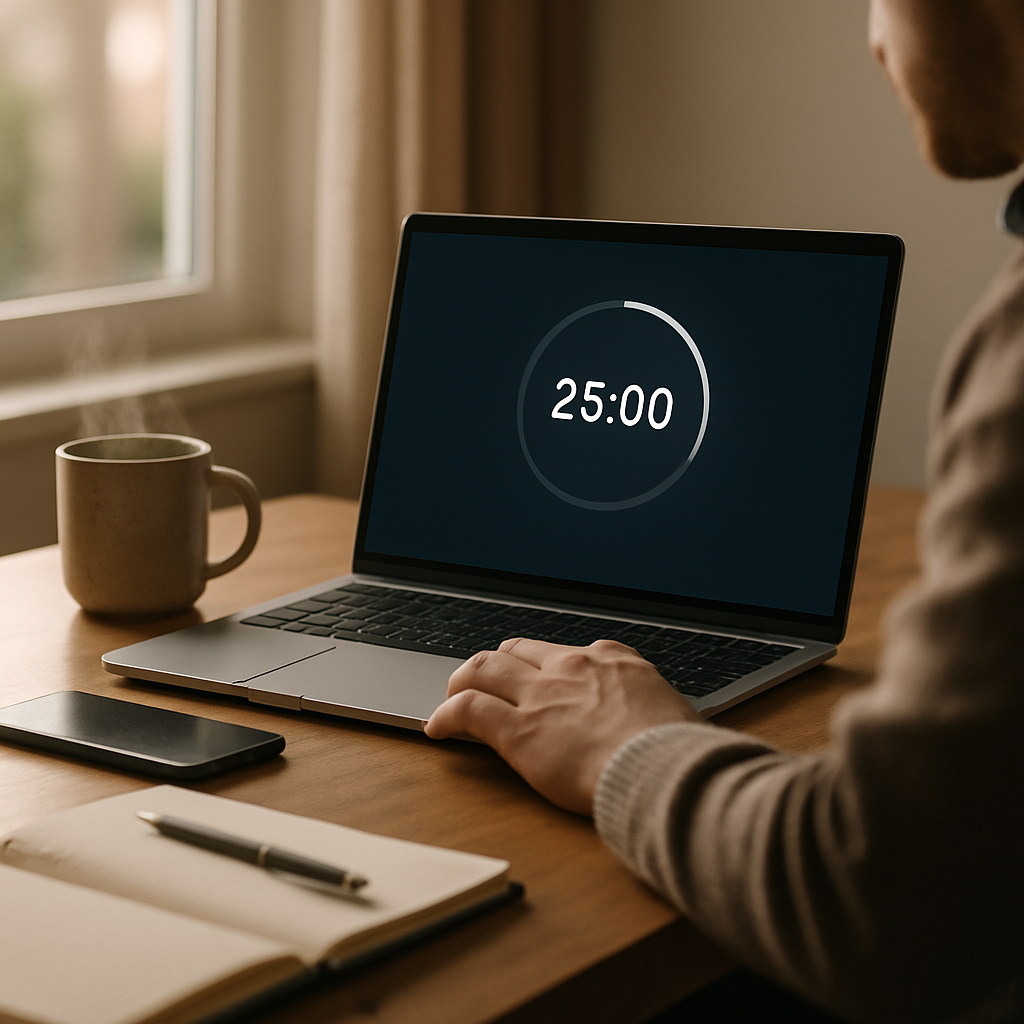
Stop paying for productivity apps when a Windows Pomodoro timer is already sitting on your device. If interruptions are draining your mental energy, a simple focus timer can dramatically improve concentration and reduce the friction of restarting tasks. This guide shows how to use the built-in Windows Focus Sessions effectively and reclaim uninterrupted work time without extra subscriptions.
Why a Pomodoro timer improves focus and productivity
The Pomodoro technique is a proven method that alternates focused work intervals with short breaks to maintain cognitive stamina. Using a timer reduces decision fatigue about when to stop or take a break, which keeps momentum steady throughout the day. As a result, you’ll spend less time reorienting after interruptions and more time completing meaningful work.
Where to find the built-in Windows Pomodoro timer
To get started, open the Windows Clock app and look for Focus Sessions. This built-in feature acts as a Pomodoro-style productivity timer, without needing third-party downloads. You can pair it with Microsoft To Do for task tracking and even connect Spotify for background music, which helps maintain a steady working rhythm.
Step-by-step: Starting a Focus Session in Windows
First, launch the Clock app from your Start menu and select Focus Sessions from the sidebar. Next, choose a task from Microsoft To Do or create a new one directly inside the app to tie your timer to a specific objective. Finally, set your preferred work interval and break times, then press Start to begin a focused session.
Customize intervals and breaks for your workflow
You don’t have to stick to the classic 25/5 structure if it doesn’t suit you. For longer, deep-focus tasks, try 50/10 blocks; for quick sprints, use 15/3 intervals. Additionally, schedule longer breaks after several cycles to reset fully. These small adjustments help align the built-in timer with the natural flow of your work.
Silence interruptions with Focus Assist and other tips
To make the most of focus sessions, combine the timer with Windows Focus Assist (Do Not Disturb). This feature mutes notifications so alerts won’t break your concentration mid-session. Also, place your phone face-down or in another room to remove the biggest source of distraction.
Integrations and extras that enhance focus
Moreover, integrating Microsoft To Do helps you prioritize tasks before a session, creating a clear intention for each interval. If you prefer ambient music, connect Spotify within Focus Sessions to play instrumental playlists that minimize cognitive interference. Together, these tools create a closed loop: set a goal, focus, and check it off when the timer ends.
Practical strategies to stick with focused work
Start by blocking two to four focused sessions each day, then gradually increase as your concentration improves. Use transitional phrases like “first, then, next” to structure your tasks before starting the timer. Keep sessions consistent in duration and treat breaks as a reward to reinforce the habit.
Handling interruptions and troubleshooting
If a genuine interruption occurs, log it and resume the session as soon as possible to maintain accountability. In case Focus Sessions or integrations are unavailable, you can still use the Clock app’s basic timer or a desktop stopwatch. The key is to keep the mechanics simple so habit formation isn’t hindered by technical friction.
Why this built-in option beats paid alternatives
Paid productivity apps often offer features that overlap with what Windows already provides, such as task lists, timers, and integrations. By using the built-in Pomodoro timer, you avoid subscription costs while keeping your setup lightweight and integrated with native Windows tools. This approach reduces tool sprawl and helps you focus on work instead of managing apps.
To start improving how you work today, open the Clock app and run one Focus Session—set a clear task, silence notifications, and resist the urge to multitask. Over time, consistent use of the Windows Pomodoro timer will make focused work automatic, saving time and preserving mental energy for the tasks that matter most.




Leave a Reply